| |
CalendarLabs Tools & Service FAQ
|
|
|
Top |
How can I print a calendar?
|
|
To print a calendar click on the "Printable Format"
link. It will open a popup window, where you can print
calendar using browser "Print" button or by pressing
"Ctrl + P" key, alternatively you can click on menu
"File -> Print". You can also view print preview by
clicking menu "File -> Print Preview" of any browser. |
Top |
How can I print page background color while printing a calendar?
|
| If you are using "Internet Explorer"
as browser: By default printing
background color and images are off in most
of the browser. To change this setting click
on menu "Tools -> Internet Options".
Then click on tab "Advanced". Scroll
to "Printing" section and select
checkbox "Print background colors and
images". Click button "OK" to
confirm. You may have to close this window
and open a new window.
If you are using "Mozilla Firefox" as
browser:
To change this setting click on menu
"File -> Page Setup". Select checkbox
"Print Background(colors & images)",
click button "OK" to confirm.
|
Top |
How can I remove header and footer
of a page while printing?
|
|
If you are getting headers and footers of the page while
printing, follow the below steps to remove it. If you
are using "Internet Explorer" as browser:
Go to menu "File -> Page Setup", then remove all
contents for "Header" and "Footer" field on
the "Headers & Footers" section. Go to "Print ->
Page Setup" if you are using Internet Explorer version
7.0
If you are using "Mozilla Firefox" as browser:
Go to menu "File -> Page Setup", select tab
"Margin & Header/Footer". Set all the fields to
"--blank--" on "Headers & Footers" section.
|
Top |
How can I get the url of an image
from internet?
|
|
You can use url of any image from internet for creating
photo calendar. To get the url follow below steps. If
you are using "Internet Explorer" as browser:
Right click on the image and select "Properties".
Copy the "Address(URL)" of image. Now you can paste
the url in "Use Photo URL" field of
photo calendar.
If you are using "Mozilla Firefox" as browser:
Right click on the image and select "Copy Image
Location". Now you can paste the url in "Use Photo URL"
field of photo calendar.
|
Top |
Can I reuse the image, once it's uploaded into this
site?
|
|
Sorry, this feature is not available in our site but now we are
working on it.
. |
How can I include holidays for specific country while
printing?
|
Top |
|
Currently this service is available for yearly calendar
only. Go to "Make your own calendar" on
online calendar page.
Check the checkbox "Include Holidays", then select desired
country from country select option and click on "Year
Calendar" button. It will generate calendar with
holidays. To print this calendar, click on "Printable
Format" link. |
Top |
How can I unsubscribe/delete an iCal
calendar?
|
|
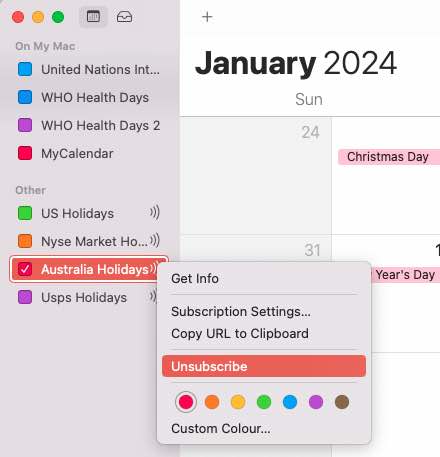
To unsubscribe/delete an ical calendar follow below steps:
Right click on the calendar you want to delete /
unsubscribe. Then select "Delete" from drop down menu.
 |
Top |
Can I include week number into calendar?
|
|
Yes. You can include week number in online and photo
calendars. |
Top |
Can I start week on Monday instead
of Sunday for
calendar?
|
|
Yes. There is an option to start the week either from Sunday
or Monday. |
Top |
How to adjust template to print in
different size paper?
|
|
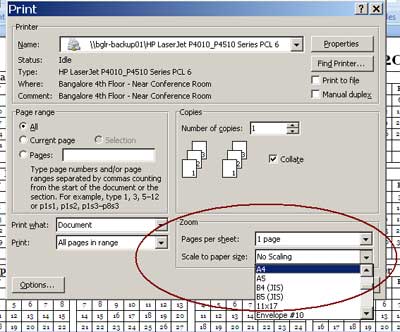
Choose print option in your MS-Word. Go to section "Zoom".
Select the paper size for option "Scale to paper size" and
then print calendar template.
 |